Setting up Python on your Computer
You can start working with Python by downloading and installing it on your system.
Python itself is available in two versions, namely, 2.x and 3.x versions. Python 2.x is legacy, while Python 3.x is the present and future of the language. While many people swear by Python 2.x versions, the whole development and community effort is moving towards version 3.x. In this course, we will be using python 3.x version.
Install Python
You can download Python from python.org (https://www.python.org/downloads/). There are separate downloadables available for different operating systems such as Windows, Mac OS, and Linux. Once downloaded, start the installer by double-clicking it and follow the prompts.
If you face any problem in installation, feel free to discuss any issues in the forum.
OS X and Linux come with Python already installed.
Install a Text Editor
When you create python programs, they are saved in files with the extension .py. While you can create Python programs in Notepad or TextEdit, you will find it much easier to read and write the code using a specialized text editor. There are a variety of free editors to choose from such as Notepad++ (Windows), TextWrangler (Mac), or Atom. There are also advanced Integrated Development Environments (IDEs) such as PyCharm which makes working on python projects very easy. To start with, I would suggest to just use Notepad++, Textwrangler, or Atom. Once you've become comfortable with writing python programs and are working on complex projects, you can move to using an IDE. My personal favourite is Atom.
Python Interface
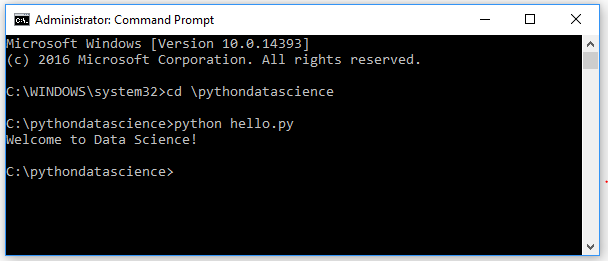
Once you've installed Python, you can start using it. To do so, open Command Prompt (Windows) or Terminal (Mac/Linux) and type python. To open Command Prompt in windows, Press Windows key+R to open the Run dialog box, type cmd in the empty box, and then click OK or hit Enter to open it
Test Your Knowledge
Check your understanding of this lesson with a short quiz.